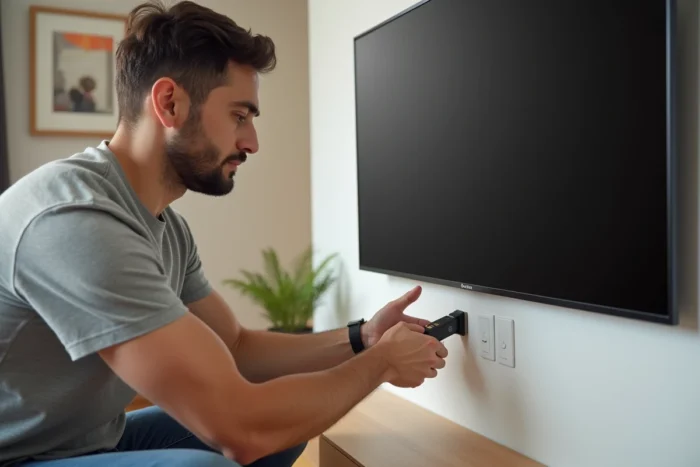
The Xiaomi Mi TV Stick is an HDMI multimedia dongle that transforms a traditional TV into a Smart TV running Google TV. The principle: a compact dongle plugged into the TV’s HDMI port, powered by USB, which provides access to streaming apps, voice navigation via Google Assistant, and casting from a smartphone.
HDMI port, USB power, and Wi-Fi signal: the three hardware prerequisites
Before taking the stick out of its packaging, three checks can prevent most issues encountered during the initial setup.
The TV’s HDMI port must be free and accessible. On some older models, the HDMI ports are recessed in a nook that is too narrow to accommodate the stick. In this case, a male-to-female HDMI extension cable solves the problem without signal loss.
The USB power supply must provide sufficient current. The included micro-USB cable connects to the power adapter included in the package. Using the TV’s USB port instead of the power adapter often causes unexpected restarts or a black screen: the power delivered by these ports is rarely sufficient.
The Wi-Fi network must cover the area where the TV is located. The stick does not have an Ethernet port. A weak signal leads to micro-cuts during streaming and slows down system update downloads. If the router is in another room, a Wi-Fi repeater placed midway stabilizes the connection. For a step-by-step manual, the installation of the Mi TV Stick on Esceri details each connection with screenshots.
Initial setup under Google TV: Google account and updates
Once the stick is plugged in and the TV is turned on to the correct HDMI source, the Google TV welcome screen appears. The included Bluetooth remote must first be paired: press and hold the pairing buttons for a few seconds until the indicator light blinks.
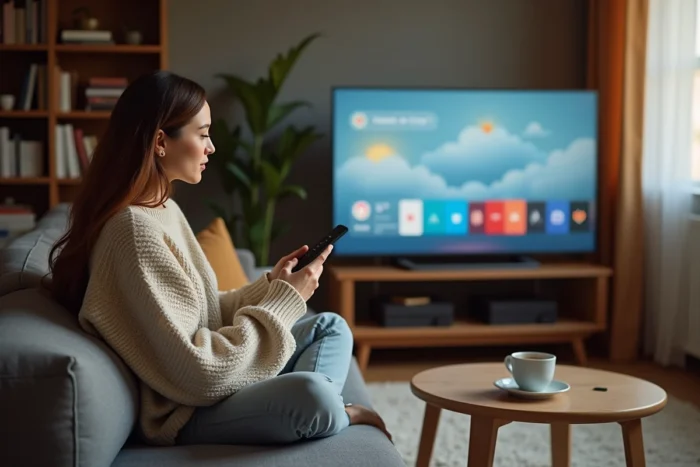
Pairing the Bluetooth remote is the very first step, even before selecting the language. Without this pairing, no interaction with the interface is possible.
The setup assistant then asks for:
- The language and country (Luxembourgish and some regions are not on the Google list; choose the closest language)
- Connection to the home Wi-Fi network by entering the password using the virtual keyboard or via the Google Home app on a smartphone
- Connection to a Google account, which synchronizes apps, preferences, and viewing history
- Acceptance or refusal of customization and data collection permissions
At the end of this assistant, the system automatically downloads available updates. Do not interrupt this update phase, even if it takes several minutes. A forced restart during a firmware update can render the stick unusable.
Installing streaming apps on the Mi TV Stick
Google TV provides access to the Play Store in its version adapted for TV screens. Popular video streaming apps (Netflix, Prime Video, Disney+, Molotov, myCanal) can be found directly there.
To install an app, navigate through the Play Store with the remote, select the desired app, and then confirm the download. The internal memory of the stick is limited, which requires careful selection of apps. Installing a dozen heavy apps saturates storage and slows down the entire system.
Some apps are not listed on the TV Play Store but can be manually installed via an APK file transferred by USB stick or through a file explorer. This method, called sideloading, requires enabling the “Unknown sources” option in the device’s security settings. It remains reserved for users comfortable with file manipulation.
Xiaomi remote and Google Assistant: voice navigation daily
The remote included with the Mi TV Stick features a microphone for Google Assistant voice commands. Pressing the dedicated button and stating a request (“Open Netflix,” “Search for action movies,” “Lower the volume”) triggers the corresponding action on the screen.
Google Assistant on the Xiaomi stick also allows control of compatible smart devices: lights, thermostats, cameras. The TV then becomes a voice command hub without the need for an additional connected speaker.
If the remote becomes unresponsive after a prolonged period of inactivity, a new Bluetooth pairing via the system settings resolves the issue. Replacing the batteries remains the first reflex to have before any software manipulation.
Differences between Mi TV Stick HD and 4K version: choose according to your TV
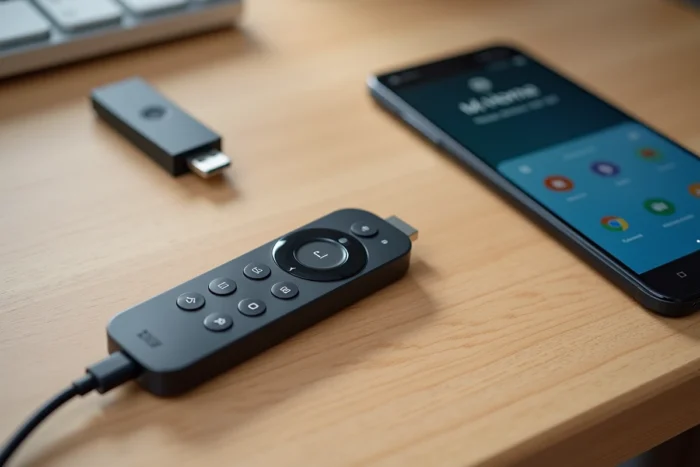
Xiaomi currently markets several generations of its multimedia stick. The Xiaomi TV Stick HD 2nd Gen targets Full HD TVs or light usage (streaming in standard definition, TV replay). The Xiaomi TV Stick 4K UHD 2nd generation is aimed at Ultra HD compatible TVs, with better video decoding and HDR management.
In practice, plugging a 4K stick into a Full HD TV poses no compatibility issues: the signal is automatically adjusted to the TV’s resolution. The reverse, however, deprives the user of the native image quality of their 4K screen.
The 4K version consumes more Wi-Fi bandwidth. A stable downstream speed is necessary to enjoy Ultra HD streaming without stuttering. Both models share the same Google TV interface and the same app catalog.
The choice between the two versions therefore depends solely on the TV’s resolution and the quality of the internet connection. Investing in the 4K version for an HD TV brings no visible gain.